Smart-Home Starter Guide for Renters
Last updated: October 7, 2026
Cali's Cart is reader-supported. When you buy through our links we may earn a commission, at no extra cost to you. As an Amazon Associate I earn from qualifying purchases. Learn more
Renting doesn’t mean you have to skip the convenience of a smart home. Plug-in devices—smart plugs, colour-changing bulbs, voice assistants and cameras—let you control lights, schedule appliances and check in on your space from your phone, all without drilling, rewiring or asking your landlord for permission. When you move, everything unplugs and comes with you.
This guide walks you through the practical side of starting a smart home in a rental: which devices suit renters, how to choose your first gadget, what to check before you buy, and the setup mistakes that trip up beginners. We researched independent reviews and product listings to help you build a system that works for your space, your budget and your daily routine.
In short
- Start with plug-in devices—smart plugs, bulbs, cameras and speakers—that need no wiring or landlord permission.
- Check your Wi-Fi band (many devices need 2.4 GHz) and choose one ecosystem (Alexa, Google Home or Apple Home) to keep setup simple.
- Measure your space and read the listing carefully for size, power requirements and compatibility before you buy.
Why plug-in devices suit renters
Plug-in smart-home devices—smart plugs, LED bulbs, cameras and speakers—need only a standard outlet and your home Wi-Fi. There’s no wiring to change, no holes to patch and no landlord approval required. You screw a smart bulb into an existing lamp, plug a smart plug into a wall outlet, or set a camera on a shelf. When your lease ends, you unplug everything and take it to your next place.
Plug-in devices also let you test what you actually use before you invest in a whole ecosystem. If you discover you never use voice control, you haven’t spent money on hardwired switches. If you love scheduling your lights, you can add more bulbs or plugs over time without committing to permanent fixtures.
Choose one ecosystem to start
Smart-home devices work with voice assistants and apps—usually Amazon Alexa, Google Home or Apple Home. Picking one ecosystem from the start keeps setup simpler: you learn one app, one set of voice commands and one routine builder. Many devices work with more than one platform (the Kasa Matter Smart Plug with Energy Monitoring works with all three via Matter, according to the listing), but you’ll still choose a primary assistant for daily control.
If you already own an iPhone or iPad and use Apple services, Apple Home may feel most natural. If you have an Android phone or use Google services, Google Home integrates smoothly. Alexa works with the widest range of budget devices and offers the most third-party skills. Check which assistant your friends or family use if you plan to ask for help with setup, and confirm that the devices you’re considering list your chosen platform on the product page.
Start with lighting or a single smart plug
Your first smart-home device should solve a specific daily annoyance. If you forget to turn off a lamp before bed, a smart bulb or plug lets you switch it off from your phone or set an automatic schedule. If you want to wake up to gradual light, a colour bulb with scheduling does that. If you want to control a fan or holiday lights without reaching behind furniture, a smart plug makes sense.
The Kasa Smart Wi-Fi Colour Light Bulbs (KL125, 2-Pack) offer 16 million colours and adjustable white temperature (2500K to 6500K warm to cool) with voice control via Alexa or Google Assistant, according to the listing. PCWorld called the KL125 a solid runner-up smart colour bulb, and Android Authority found it easy to use with good scheduling but a fussy setup. The bulbs need 2.4 GHz Wi-Fi and won’t work with 5 GHz-only networks; they’re UL certified per the listing. Setup can take a few tries, so follow the app instructions carefully and keep your phone close to the bulb during pairing.
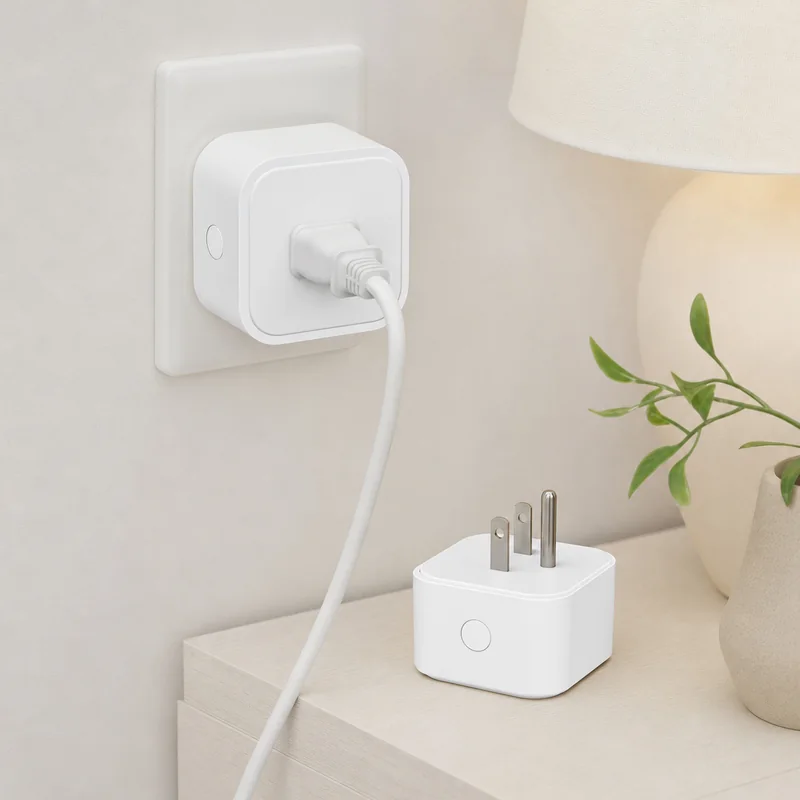
The Kasa Matter Smart Plug with Energy Monitoring (2-Pack) works with Apple Home, Alexa and Google Home via Matter and tracks power consumption over time, according to the brand. Wirecutter (The New York Times) tested the single-plug version (KP125M) and said it worked decently but cost more than their top pick; it is not Wirecutter’s recommended choice. The plug is rated for 15 A and 120 V (1800 W maximum), so it suits lamps, fans and holiday lights but not space heaters or other high-draw appliances. Each plug measures 6.7 × 4 × 3.8 cm, compact enough to avoid blocking adjacent outlets, and the listing says it offers local LAN control when your home internet is offline. It’s for indoor use only and requires 2.4 GHz Wi-Fi and app setup; the brand offers a two-year warranty.
Add a voice assistant for hands-free control
Once you have a few smart bulbs or plugs, a voice assistant—a smart speaker or display—lets you control them without opening an app. You can say
turn off the living room lamp
from the couch
set timers while cooking
or ask for the weather while getting dressed. A bedside smart display also works as an alarm clock with a customizable screen and routines that gradually brighten your lights and play music to wake you up.
The Amazon Echo Spot (newest model) is a compact smart alarm clock with Alexa, a built-in speaker and a customizable display for time, weather and song information, according to the listing. PCMag, The Verge and Wired reviewed it as a good bedside smart clock and basic speaker; it has no camera and a small screen. You control compatible smart lights and devices by voice or touch, and Alexa routines let you set gradual wake-up sequences with music and lighting. The Spot has a mic-off button for privacy and requires Wi-Fi and the Alexa app for setup. It comes in black and other colours; check the listing for the current colour selection and typical price range, which varies over time.
Common mistakes to avoid
The most common setup mistake is buying a device that needs 2.4 GHz Wi-Fi when your router is set to 5 GHz only or to a combined network name that automatically steers devices to 5 GHz. Check your router settings or your internet provider’s app before you buy; many routers let you create a separate 2.4 GHz network name for smart-home devices. If you’re not sure how, search your router model online or call your provider’s support line.
Another mistake is mixing too many ecosystems at once. If you buy an Alexa speaker, a Google Home display and Apple HomeKit bulbs in your first month, you’ll spend more time troubleshooting than enjoying your setup. Pick one assistant, add a few compatible devices, learn the app and routines, then expand. Also, don’t ignore the maximum load on smart plugs: plugging a space heater into a smart plug rated for lower power can trip a breaker or damage the plug. Check the wattage or amperage on your appliance’s label and compare it with the plug’s rating on the listing.
Quick checklist before you buy
Adding ambiance and monitoring
Once your basics—lights, plugs and a voice assistant—are working, you can add devices for ambiance or peace of mind. TV backlighting syncs colours to your screen for movie nights, and plug-in cameras let you check on pets or your entryway while you’re out. Both are renter-friendly: the backlight sticks to your TV with adhesive, and the camera plugs into an outlet and sits on a shelf or table.
The Govee TV Backlight 3 Lite uses a camera that hangs on your TV with adhesive to capture colour from any content; the 11.8 ft version fits 55 to 65 inch TVs, according to the listing. Android Central, Popular Mechanics and How-To Geek reviewed it as good budget ambient TV lighting with solid colour matching, though dimmer than Govee’s pricier models. The RGBICW LEDs include a warm white chip, and the fish-eye correction function helps match colours accurately. You can sync it with up to seven other Govee devices via DreamView, and it connects over Wi-Fi and Bluetooth with a 12 V DC, 24 W adapter. Calibration is required for accurate colour sync, and performance drops in bright ambient light; the listing says it’s for indoor use only and comes with a one-year warranty. Measure your TV and check the size version before you buy.
The Blink Mini 2 Plug-In Security Camera offers 1080p HD live view through the Blink app, a built-in spotlight for colour night view, two-way audio and real-time motion alerts, according to the listing. PCMag, The Verge and Good Housekeeping UK reviewed it as easy to set up and affordable with good daytime video; person detection requires a paid subscription, and night video quality is average. Outdoor use needs a separate weather-resistant adapter sold separately. The camera is white plastic, plugs in for power and connects via Wi-Fi; warranty details aren’t stated on the listing, so check there. Place it thoughtfully, tell housemates and guests, and follow local recording rules; we make no claims about crime prevention or safety outcomes.
Products to compare
Kasa Matter Smart Plug with Energy Monitoring (2-Pack)
The Kasa Matter Smart Plug with Energy Monitoring (2-Pack) suits renters who want to control lamps, fans or holiday lights across Apple Home, Alexa and Google Home without choosing a single ecosystem yet. The compact design (6.7 × 4 × 3.8 cm per plug) avoids blocking adjacent outlets, and energy monitoring lets you track power use over time. Wirecutter tested the single-plug version and said it worked decently but is not their top pick. The plug is rated for 15 A and 120 V (1800 W maximum), so it’s not for space heaters or high-draw appliances; it’s for indoor use only and requires 2.4 GHz Wi-Fi. The brand offers a two-year warranty and says it provides local LAN control when your home internet is offline.
Kasa Smart Wi-Fi Colour Light Bulbs (KL125, 2-Pack)
The Kasa Smart Wi-Fi Colour Light Bulbs (KL125, 2-Pack) suit first-time smart-home users who want colour and white-temperature control (2500K to 6500K) with Alexa or Google Assistant. PCWorld called the KL125 a solid runner-up smart colour bulb, and Android Authority found it easy to use with good scheduling but a fussy setup. Each bulb puts out 800 lumens (60-watt incandescent equivalent) at 9 watts, and the listing says they offer remote control, schedules, away mode and energy monitoring through the free Kasa app. They’re UL certified and need 2.4 GHz Wi-Fi; they won’t work with 5 GHz-only networks or enclosed fixtures unless rated for that use. Setup can take a few tries, so follow the app instructions carefully.
Amazon Echo Spot (Newest Model)
The Amazon Echo Spot (newest model) suits anyone who wants a bedside smart alarm clock with Alexa, a customizable display for time, weather and song titles, and voice or touch control for compatible smart-home devices. PCMag, The Verge and Wired reviewed it as a good bedside smart clock and basic speaker; it has no camera and a small screen. Alexa routines let you set gradual wake-up sequences with music and lighting, and the mic-off button offers privacy control. It requires Wi-Fi and the Alexa app for setup and comes in black and other colours; check the listing for the typical price range, which varies over time.
Blink Mini 2 Plug-In Security Camera
The Blink Mini 2 Plug-In Security Camera suits renters who want to check on pets or monitor an entryway on a budget. PCMag, The Verge and Good Housekeeping UK reviewed it as easy to set up and affordable with good daytime video; person detection requires a paid subscription, and night video quality is average. The camera offers 1080p HD live view, a built-in spotlight for colour night view, two-way audio and real-time motion alerts via the Blink app, according to the listing. It’s white plastic, plugs in for power and connects via Wi-Fi; outdoor use needs a separate weather-resistant adapter sold separately. Warranty details aren’t on the listing, so check there. Place it thoughtfully, tell housemates and guests, and follow local recording rules.
Govee TV Backlight 3 Lite
The Govee TV Backlight 3 Lite suits movie fans who want ambient lighting that syncs to their screen without drilling or permanent fixtures. Android Central, Popular Mechanics and How-To Geek reviewed it as good budget ambient TV lighting with solid colour matching, though dimmer than Govee’s pricier models. The camera hangs on your TV with adhesive and captures colour from any content; the 11.8 ft version fits 55 to 65 inch TVs, according to the listing. RGBICW LEDs include a warm white chip, and the fish-eye correction function helps match colours; you can sync it with up to seven other Govee devices via DreamView. It connects over Wi-Fi and Bluetooth with a 12 V DC, 24 W adapter, and the listing says it comes with a one-year warranty. Calibration is required, and performance drops in bright ambient light; measure your TV and check the size version before you buy.
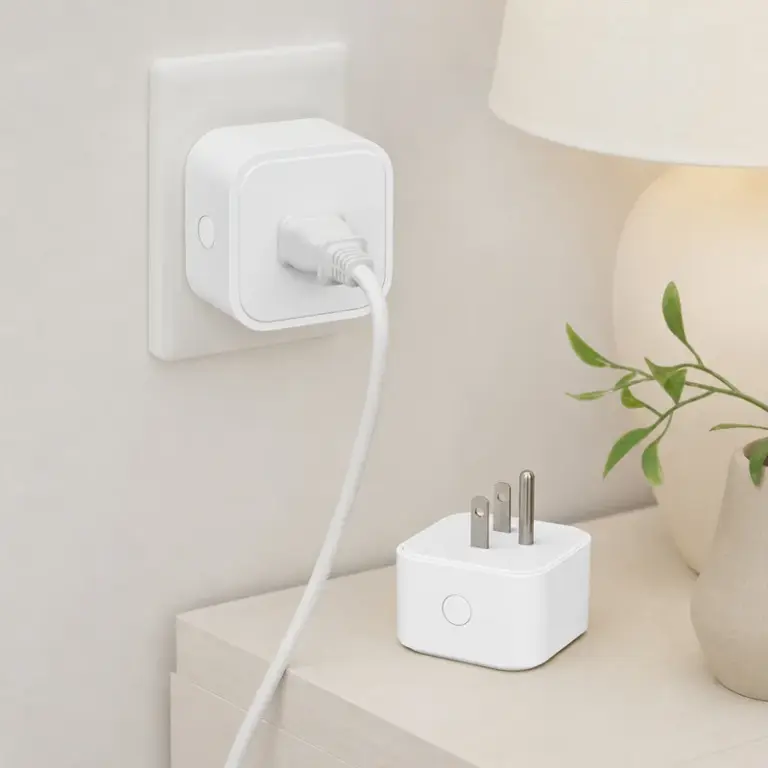
Kasa (TP-Link)
Kasa Matter Smart Plug with Energy Monitoring (2-Pack)
Best for Lamps, fans and holiday lights with Matter-platform control
Matter-compatible smart plugs with energy monitoring, 15 A rating, and voice control via Apple Home, Alexa or Google Home.
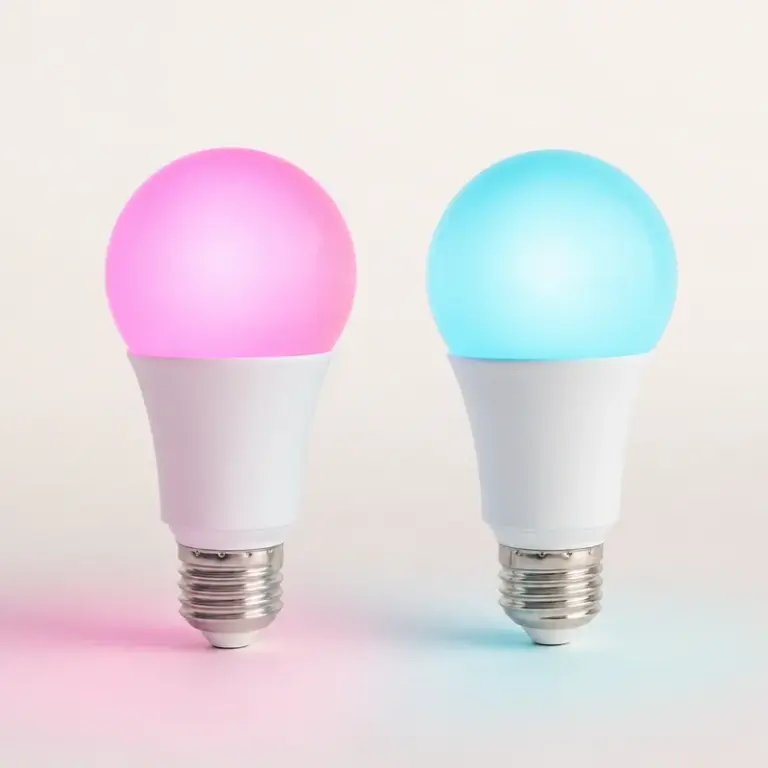
Kasa (TP-Link)
Kasa Smart Wi-Fi Colour Light Bulbs (KL125, 2-Pack)
Best for Renters and first-time smart-home users with 2.4 GHz Wi-Fi
Wi-Fi colour bulbs with voice control, app scheduling and 16 million colour options for bedroom and living-room lamps.
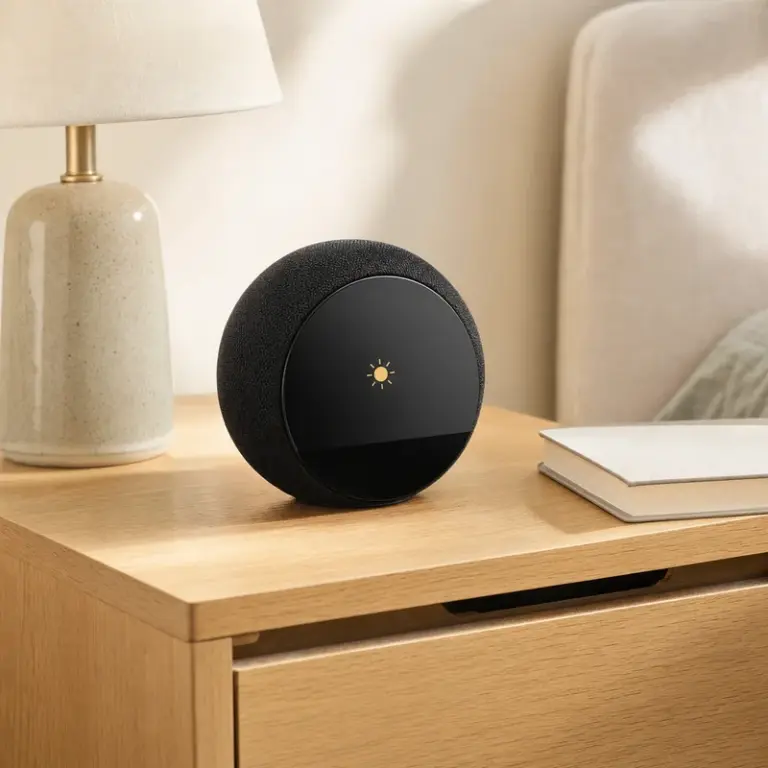
Amazon
Amazon Echo Spot (Newest Model)
Best for Bedside tables and desks with Alexa-compatible devices
A compact smart alarm clock with Alexa, customizable display, and speaker for bedside use.
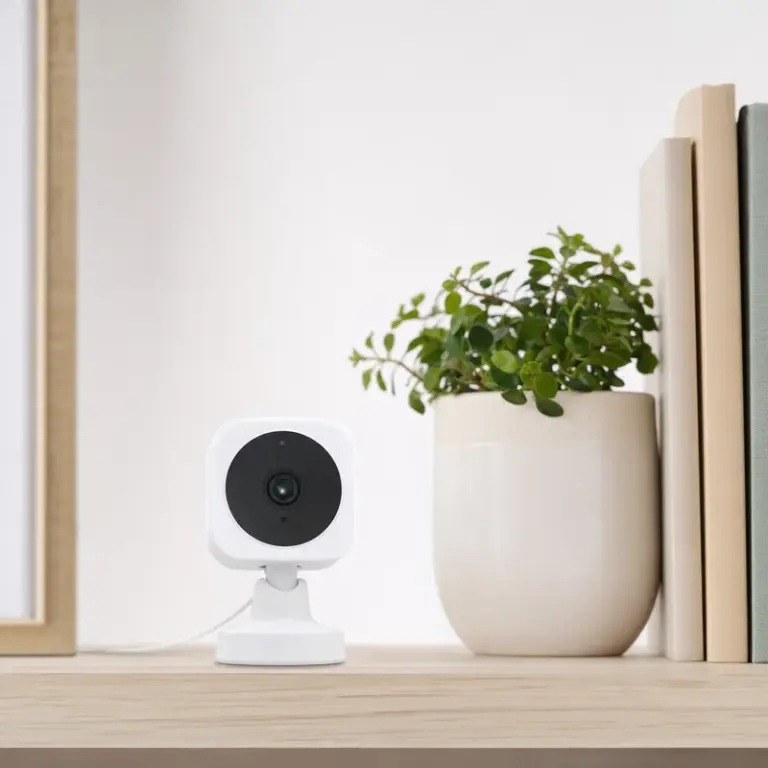
Blink (Amazon)
Blink Mini 2 Plug-In Security Camera
Best for Pet check-ins and monitoring entryways on a budget
A plug-in indoor camera with 1080p video, colour night view, built-in spotlight and two-way audio via the Blink app.
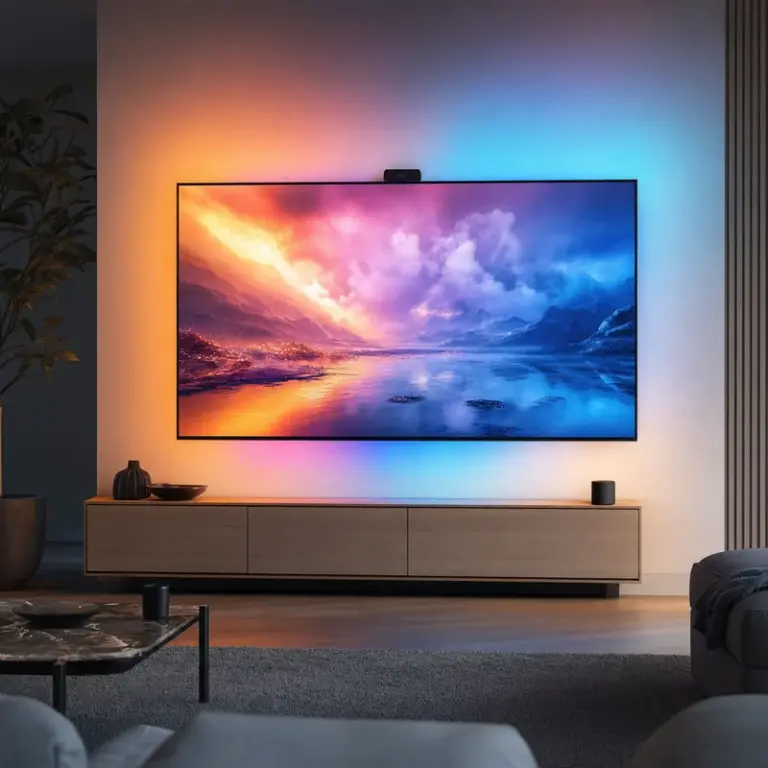
Govee
Govee TV Backlight 3 Lite
Best for Movie nights and cozy living room ambiance
Camera-based LED strip that syncs ambient lighting to your TV screen with warm white chip and app calibration.
As an Amazon Associate I earn from qualifying purchases. How we make money
Frequently asked questions
Do I need my landlord’s permission to install smart-home devices?
Plug-in devices—smart plugs, bulbs, cameras and speakers—need no wiring changes or permanent fixtures, so most leases don’t require landlord approval for them. You screw a bulb into an existing socket, plug a device into an outlet, or stick a camera on a shelf. Adhesive mounts (like those for TV backlights or camera bases) may leave residue, so test in a hidden spot first or plan to clean the surface when you move. If you’re considering a device that requires drilling, mounting hardware or electrical work, check your lease and ask your landlord in writing before you buy.
What happens to my smart-home devices when I move?
Plug-in devices unplug and come with you. Before you move, delete your Wi-Fi network from each device in its app, then pack the devices with their power adapters and any mounting hardware. At your new place, set up your Wi-Fi, plug in each device and add it back to your app using the same account. Your schedules, routines and device names usually stay in the app, but you may need to reconfigure room assignments or groupings if your new layout is different. Keep the original boxes if you have storage space; they make packing and resale easier.
Can I use smart-home devices if my Wi-Fi is slow or unreliable?
Most smart plugs, bulbs and cameras need a stable Wi-Fi connection for remote control and app features. If your Wi-Fi drops frequently, devices may go offline or fail to respond to voice commands. Some devices (like the Kasa Matter Smart Plug, according to the brand) offer local LAN control, which lets you control them from your phone when you’re home even if your internet is down, but you’ll still need Wi-Fi for initial setup. If your Wi-Fi is slow, prioritize your router’s 2.4 GHz band for smart-home devices and your 5 GHz band for streaming and video calls; 2.4 GHz has better range through walls, which helps with devices in bedrooms or far corners.
How do I know which Wi-Fi band my device needs?
Check the product listing under connectivity, specifications or requirements; it will say 2.4 GHz, 5 GHz or dual-band. Many budget smart-home devices need 2.4 GHz Wi-Fi and won’t connect to 5 GHz-only networks. If your router combines both bands under one network name, you may need to create a separate 2.4 GHz network name in your router settings or your internet provider’s app; search your router model online for instructions, or call your provider’s support line. During device setup, make sure your phone is connected to the same 2.4 GHz network you want the device to use.